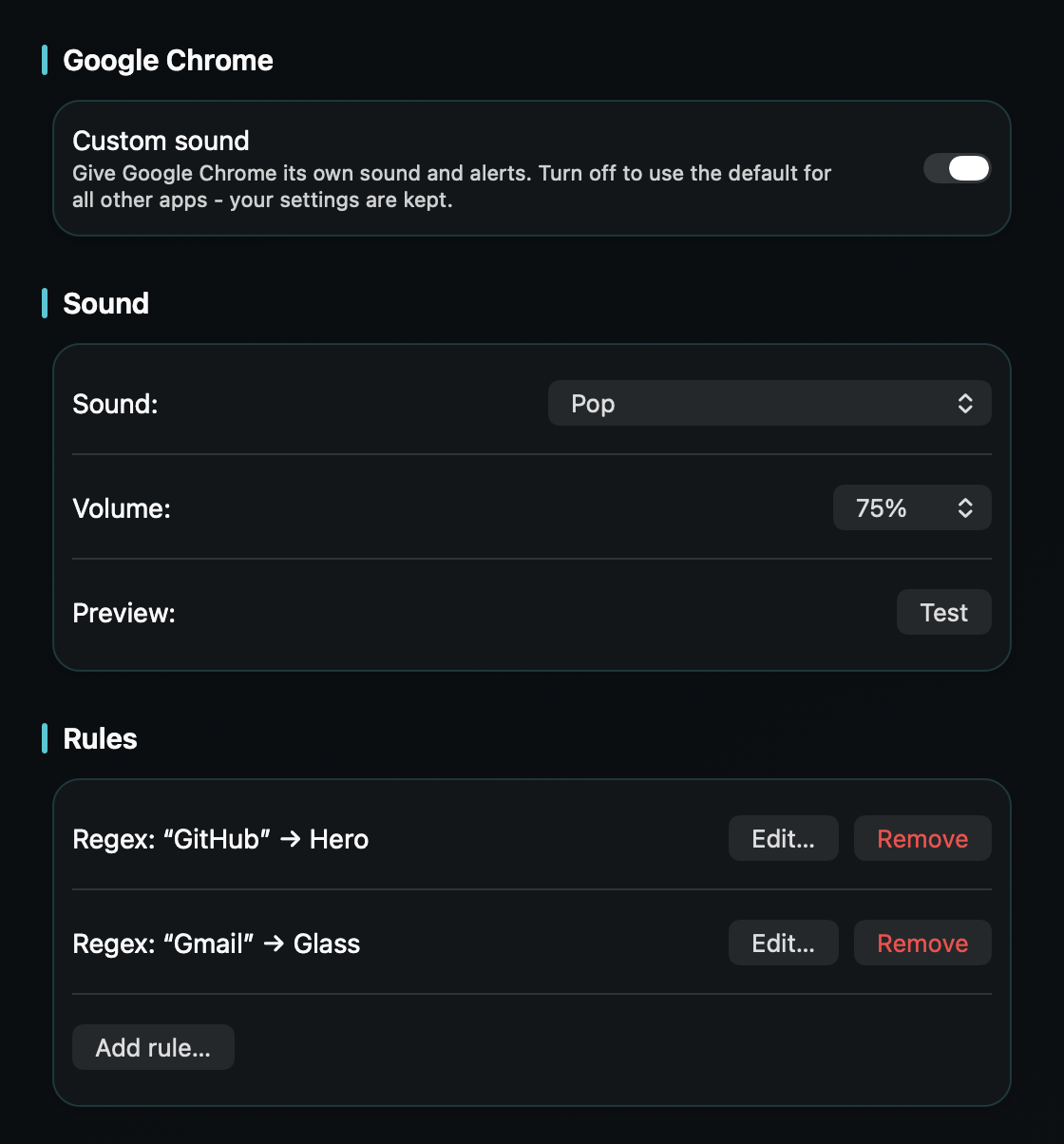
So a message from the one web app you care about doesn’t sound exactly like every other site that notifies through Chrome.
Websites - Gmail, WhatsApp Web, Google Calendar, a dozen others - can send desktop notifications through Chrome, and macOS shows every one of them as coming from “Google Chrome,” with the same single alert sound. So you can’t tell by ear which site pinged you, and you can’t silence the noisy ones without silencing all of them.
macOS only lets you switch Chrome’s sound on or off, and that switch covers everything Chrome shows at once.
TrillMark reacts to the banner Chrome shows. Add Chrome for a distinct sound and a color across all its web notifications - but the useful part is rules: because TrillMark reads the notification’s title and body, you can add a rule that fires only when the banner is from a particular site (its name usually appears in the text) and give that one a louder, distinct sound, while the rest stay soft.
It’s the same trick that lets TrillMark pick real Gmail out of every Chrome notification, applied to any site you care about.
It reads that text only on your Mac, only to decide how to react, and never sends it anywhere.
Give Chrome its own sound and a colored, labeled flash. One‑time purchase, up to 3 Macs. Apple silicon and Intel, macOS 14+.
Chrome itself only lets you allow or block notifications per site - not change their sound. With TrillMark you can add a rule that matches a site’s name in the notification text and give that one site its own sound and flash.
Because the browser posts them on the site’s behalf, so macOS labels them with Chrome’s name. The site name usually appears inside the notification’s text, which is what TrillMark can match a rule on - read only on your Mac and never sent anywhere.
Yes. Add a TrillMark rule for the site you care about with a louder sound, and block notifications for the noisy sites in Chrome’s own site settings.