So a real @mention doesn't sound like every other banner - and the servers you actually care about are the ones you hear.
macOS gives every app the same alert sound and only lets you turn an app's notification sound on or off - never change it. So a Discord ping sounds identical to a work email or a system alert, and you can't tell them apart by ear.
Discord is often running in the background across several servers at once, so “was that something I care about, or just a busy channel?” is a question you end up answering by stopping and looking - over and over.
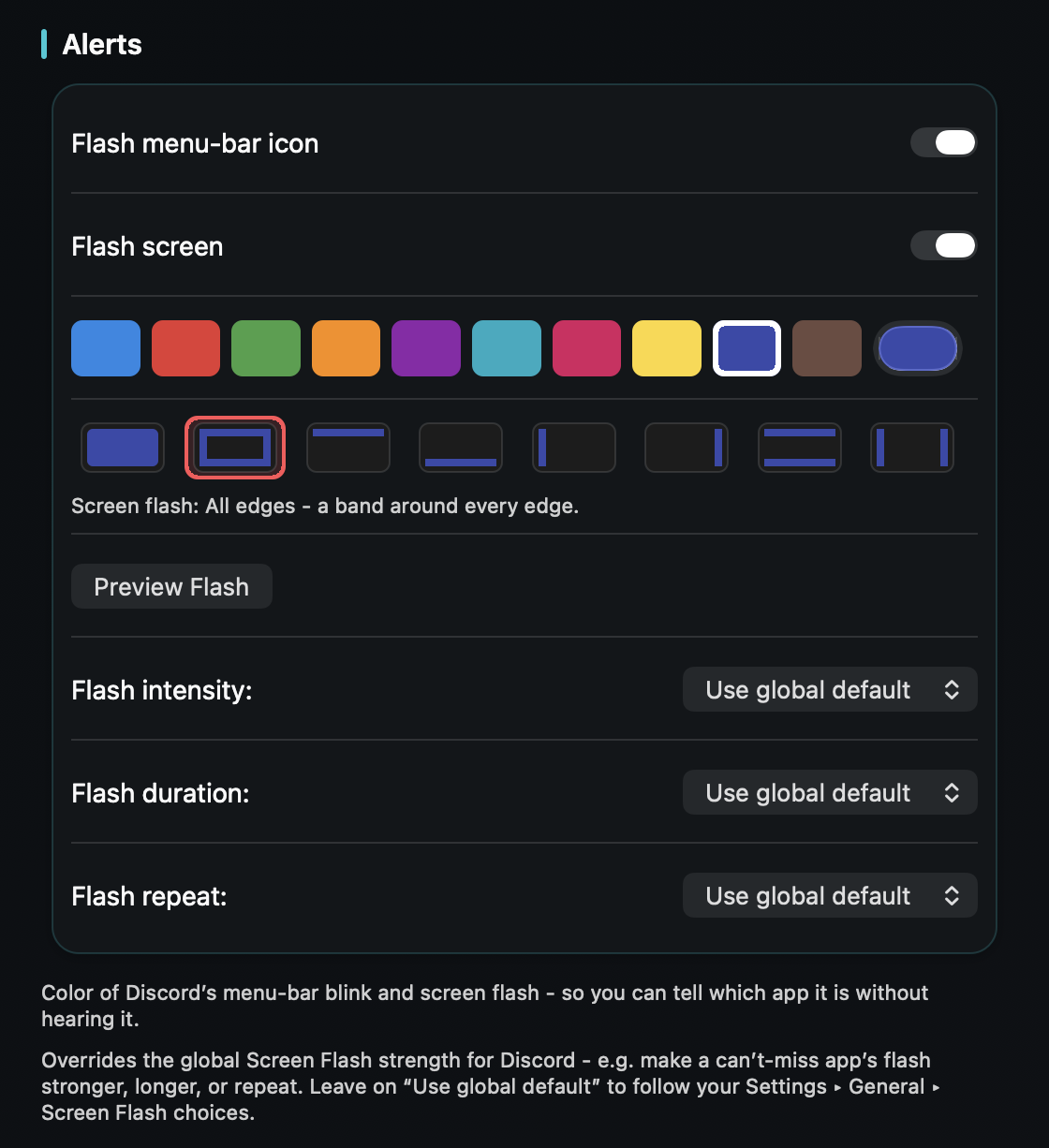
TrillMark reacts to the notification banners macOS already shows. Add Discord, give it a sound you'll know instantly, and pick a color. When Discord notifies you, you hear its sound and see a flash in that color labeled “Discord,” so you know what it is without switching windows.
Pair that with Discord's own per-server settings for the best of both: let Discord decide which servers and channels are allowed to notify you at all, and let TrillMark make those notifications instantly identifiable - with an optional rule for a louder sound when a message mentions you by name.
Everything happens on your Mac. TrillMark reads a notification's text only to decide how to react, and never sends it anywhere.
Give Discord its own sound and a colored, labeled flash. One‑time purchase, up to 3 Macs. Apple silicon and Intel, macOS 14+.
Not through Discord or macOS alone - Discord uses your Mac's single alert sound, and macOS only lets you turn an app's notification sound on or off. A tool like TrillMark reacts to the Discord banner and plays a sound you choose, plus a colored, labeled flash, so Discord is easy to tell apart.
Yes. TrillMark can read a notification's text, so you can add a rule that plays a louder sound only when a Discord message mentions you, while everything else stays soft or silent. The text is read only on your Mac and never leaves it.
Absolutely - they're the best way to cut down which servers and channels notify you in the first place. TrillMark then makes the notifications that get through instantly recognizable by sound and color.