So an email from your manager or a message you're waiting on isn't just one more identical chime among the rest.
macOS has a single alert sound, and the only per-app control it offers is a switch to play a sound or not. So Outlook's chime is identical to Slack, Teams, and everything else - there's no way to make it sound like Outlook.
Outlook can be busy: calendar invites, replies, list mail, and the message you're actually waiting for all arrive the same way. When they all sound the same, the ones that matter get buried.
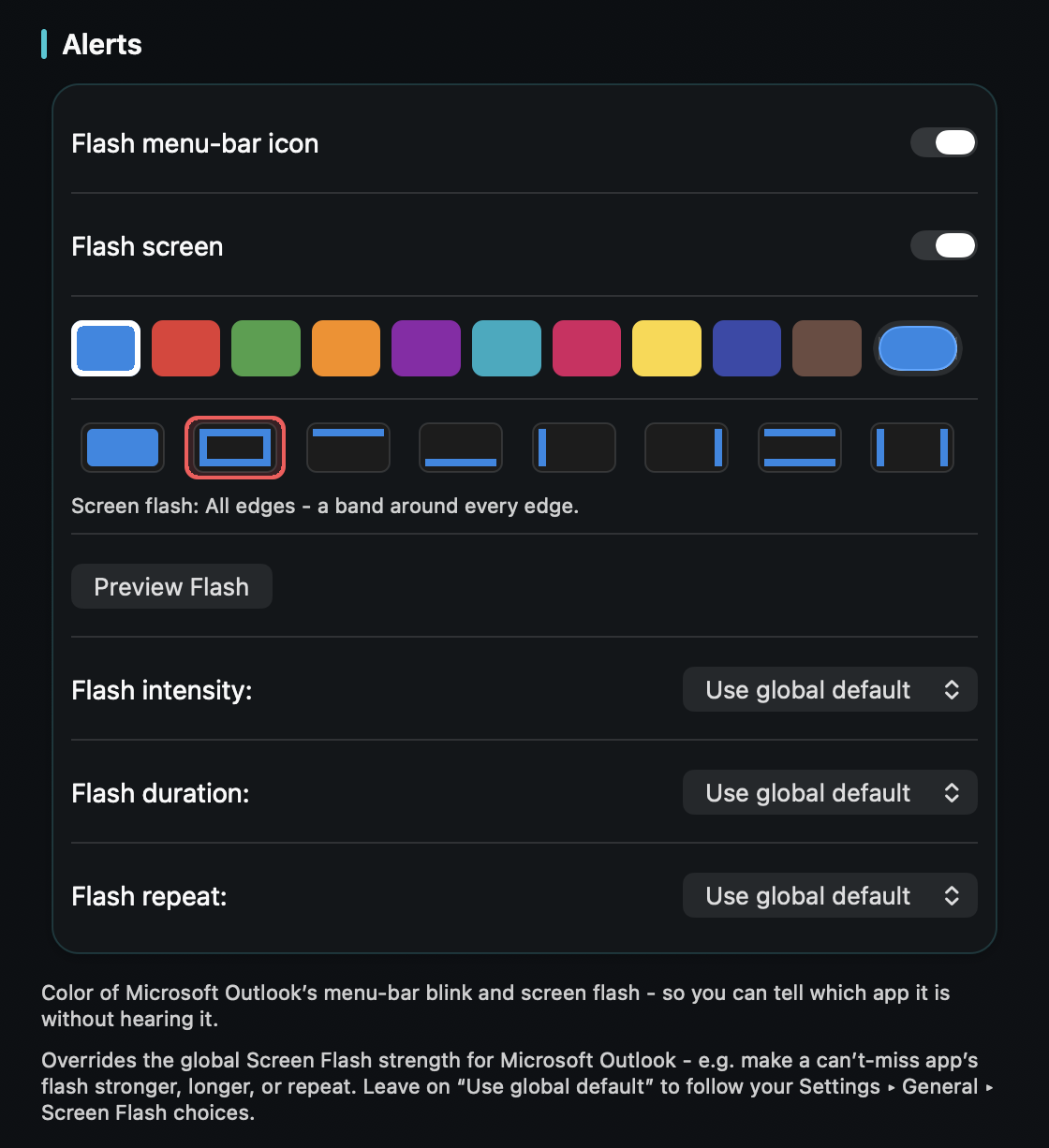
TrillMark reacts to the notification banner macOS already shows. Add Outlook, give it a sound you'll know instantly and a color, and every Outlook message arrives as a sound you recognize plus a flash labeled “Outlook” - no need to switch to it to see what came in.
Because TrillMark can read the notification's text, you can set a louder, more urgent sound only for what matters - a rule like “when the sender is my manager” or “when the subject contains ‘urgent’” - while routine mail stays soft or silent. Pair it with Outlook's Focused Inbox and you get volume control and instant recognition together.
The text is read only on your Mac, only to decide how to react, and is never sent anywhere.
Give Outlook its own sound and a colored, labeled flash. One‑time purchase, up to 3 Macs. Apple silicon and Intel, macOS 14+.
Not through Outlook or macOS alone - Outlook uses your Mac's single alert sound, and macOS only lets you turn an app's notification sound on or off. TrillMark reacts to the Outlook banner and plays a sound you choose, with a colored, labeled flash, so it's easy to tell apart.
Yes. TrillMark can read a notification's text, so you can add a rule that plays a louder sound only when a message is from a specific person or matches a subject keyword, while routine mail stays quiet. The text is read only on your Mac and never leaves it.
Yes - they complement each other. Use Focused Inbox to reduce how much notifies you, and TrillMark to make the notifications that get through instantly recognizable by sound and color.