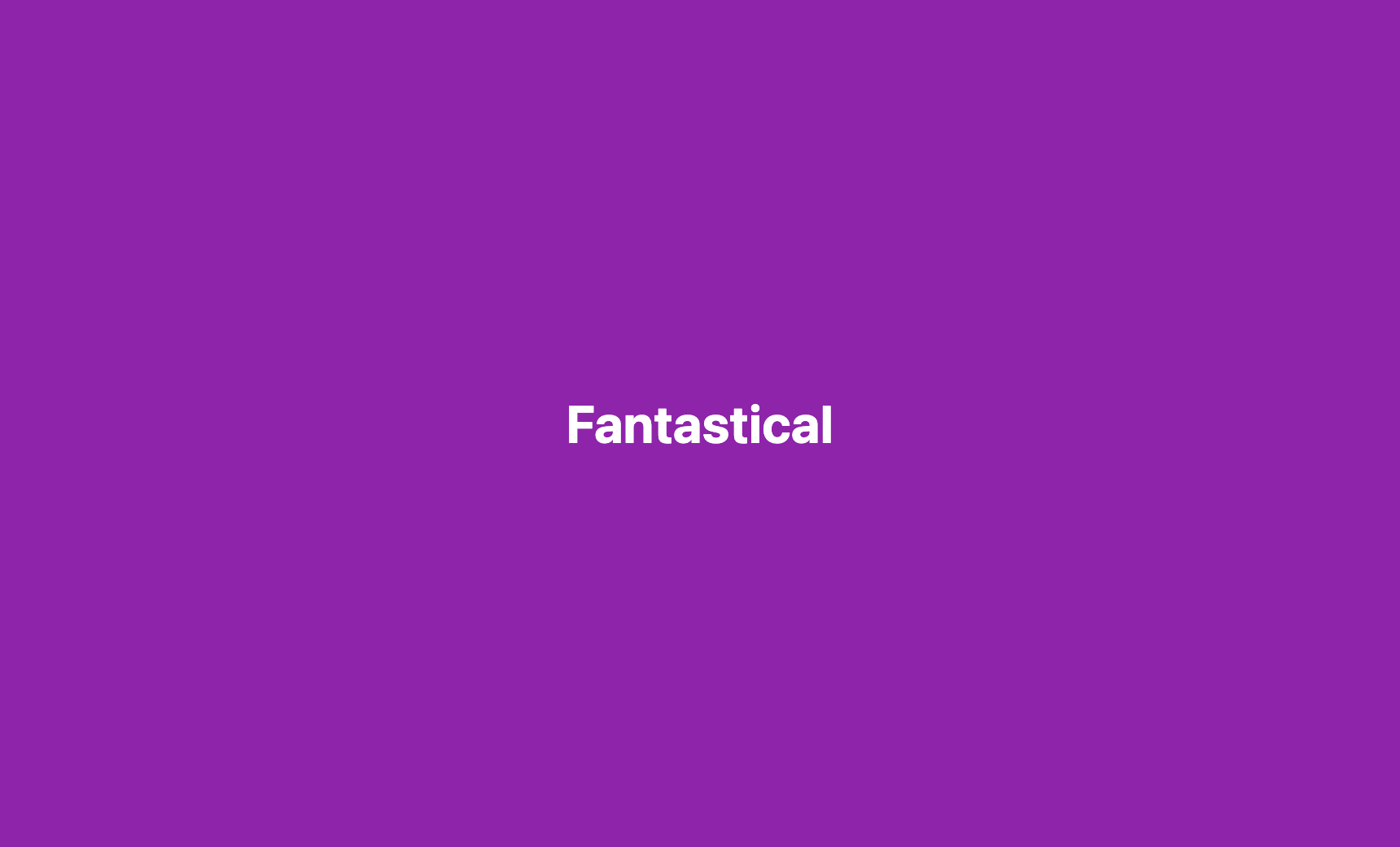
So a meeting about to start is something you can't miss - even mid-call, even with the sound off - while everyday reminders stay gentle.
macOS plays one alert sound for everything and only lets you switch an app's sound on or off. So a Fantastical event alert sounds exactly like a chat message or an email - the same quiet chime for “stand-up in 5 minutes” as for a newsletter.
When you're heads-down or already on a call, that single soft banner is easy to talk right over, and you find yourself joining the next meeting a few minutes late.
TrillMark reacts to the banner Fantastical shows. Add Fantastical, give it a sound and a color, and choose how it flashes - a full-screen wash labeled “Fantastical” for the top of a meeting is hard to miss even if you're mid-sentence on a call or have the sound off entirely.
You can boost that sound above 100%, up to 200%, so it cuts through music or another call's audio when a meeting is actually starting. And because TrillMark can read the notification's text, you can keep the big alert for real events and let all-day items or low-priority reminders use a quiet edge band instead - or match a keyword like a project name so work meetings look different from personal ones.
It reads that text only on your Mac, only to decide how to react, and never sends it anywhere.
Give Fantastical its own sound and a colored, labeled flash. One‑time purchase, up to 3 Macs. Apple silicon and Intel, macOS 14+.
Not with Fantastical or macOS alone - Fantastical controls when you're alerted, but the notification uses your Mac's single alert sound, and macOS only lets you switch it on or off. TrillMark reacts to the banner and plays a sound you choose, with a colored, labeled flash you can even make full-screen.
Yes. TrillMark can boost a sound above 100%, up to 200%, and flash the whole screen labeled with the app's name when an event is about to start - so you catch the top of a call even mid-conversation or with the sound off.
Only if you want them to be. Because TrillMark can read a notification's text, you can give real event alerts the full-screen treatment while all-day items and low-priority reminders use a quiet edge band or no sound.