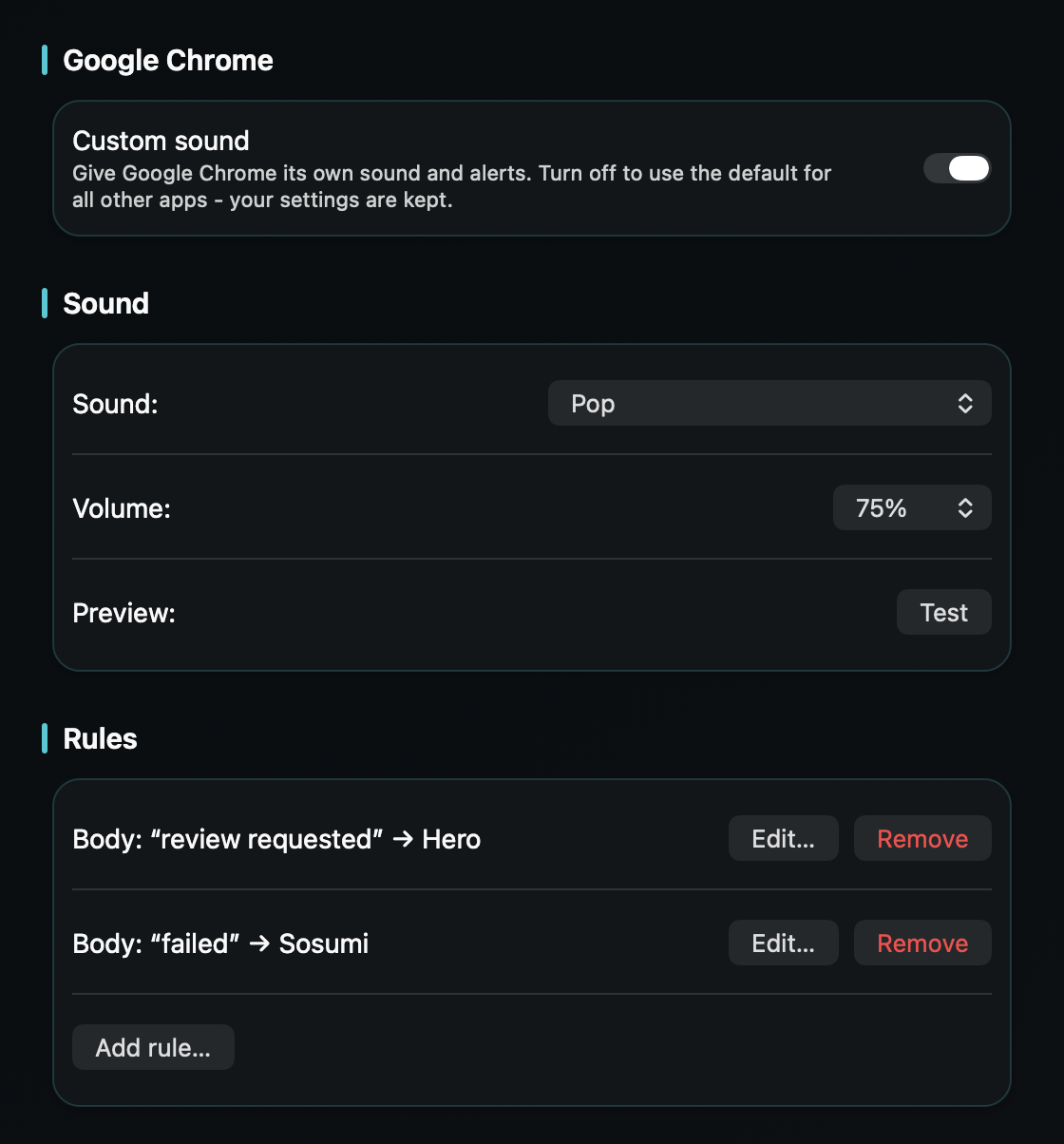
So a review request or a failed check reaches you the moment it lands - without every watched-repo update sounding just as urgent.
macOS plays one alert sound for every notification and only lets you switch an app's sound on or off - never change it. So a “review requested” pings exactly like a newsletter, and it's easy to miss the one that's blocking a teammate.
GitHub is also a moving target on a Mac. It doesn't have a first-party notification app; it reaches you through the browser (web push from github.com in Chrome or Safari) or by email. From the browser, macOS labels the banner with the browser's name, not “GitHub,” which makes it even harder to pick out of the pile.
TrillMark reacts to the banner macOS already shows, so it works whether GitHub reaches you through the browser or email. Add that app, give it a sound and a color, and because TrillMark can read the notification's text, you can add a rule that fires only for the events that need you - a review request, an @mention of your username, an assignment, or a failed check - while the steady stream of watched-repo activity stays quiet.
So a “review requested” or a red CI run arrives as a louder sound you know plus a labeled flash, and everything else stays soft or silent. If GitHub comes through the browser, the same rule keeps it from firing on every other website's notifications.
It reads that text only on your Mac, only to decide how to react, and never sends it anywhere.
(?s)(?=.*github).*(review requested|mentioned|failed|yourname) , with yourname changed to your GitHub username. It fires only when the notification mentions GitHub and one of those words, so other websites stay quiet. Give it a louder sound.Give GitHub its own sound and a colored, labeled flash. One‑time purchase, up to 3 Macs. Apple silicon and Intel, macOS 14+.
Not with GitHub or macOS alone - GitHub notifies you through the browser or email, both of which use your Mac's single alert sound, and macOS only lets you turn that sound on or off. TrillMark reacts to the notification and plays a sound you choose, with a colored, labeled flash.
Yes. Because TrillMark can read a notification's text, you can add a rule that plays a distinct sound only when the banner mentions a review request, your username, or a failed check, while routine activity stays quiet. The text is read only on your Mac and never leaves it.
Yes. TrillMark reacts to the browser's banner, and a text-matching rule fires only when the notification is actually from GitHub, not for every other website Chrome notifies you about.