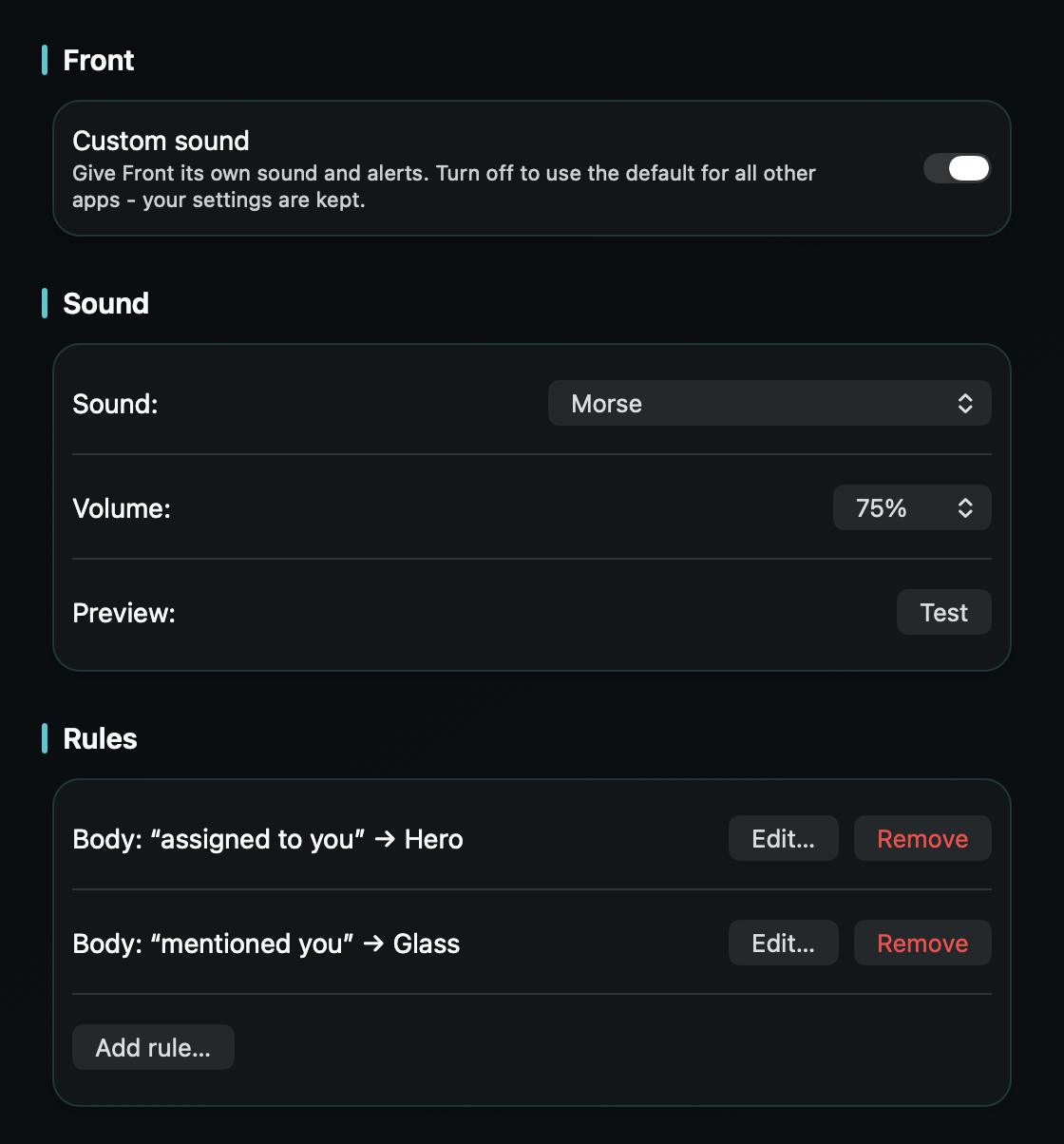
So a conversation assigned to you - or a teammate @mentioning you in a comment - reaches you the moment it lands, without the whole team's inbox traffic sounding just as urgent.
macOS plays one alert sound for every notification and only lets you switch an app's sound on or off - never change it. Front's whole point is that the inbox is shared - so its Mac app can speak for your entire team's traffic, and the conversation that was just put in your name pings exactly like one a teammate already has covered.
The volume compounds it: new conversations, replies, internal comments, and @mentions all stream in with the same chime. The one that's actually yours - the assignment, the comment addressed to you - is easy to lose in traffic you're only supposed to be aware of.
Front has a native Mac app, so TrillMark reacts to the banner it already shows - no browser needed. Add Front, give it a sound and a color, and because TrillMark can read the notification's text, add a rule that fires only for what needs you: the text contains your name, “assigned,” or an @mention.
So an assignment or a comment addressed to you arrives as a louder sound you recognize plus a colored flash labeled with the app's name, while the team's general traffic stays soft or silent. You keep the shared awareness without paying for it in attention.
It reads that text only on your Mac, only to decide how to react, and never sends it anywhere.
Give Front its own sound and a colored, labeled flash. One‑time purchase, up to 3 Macs. Apple silicon and Intel, macOS 14+.
Not with Front or macOS alone - Front lets you choose which activity notifies you, but the notification uses your Mac's single alert sound, and macOS only lets you turn that sound on or off. TrillMark reacts to the banner Front shows and plays a sound you choose, with a colored, labeled flash.
Yes. Because TrillMark can read a notification's text, you can add a rule that plays a distinct sound only when the banner mentions your name, an assignment, or an @mention, while the team's general traffic stays quiet. The text is read only on your Mac and never leaves it.
Spark is your personal inbox - that guide layers a sender rule on its people-only smart notifications. Zendesk is browser-based ticketing. Front is your team's shared email in a native Mac app, so this rule separates the conversations in your name from traffic the whole team can see.