So important mail is something you hear the moment it lands - and Spark doesn't sound exactly like every other app on your Mac.
macOS plays one alert sound for every notification and only lets you switch an app's sound on or off - never change it. So Spark chimes exactly like Slack, a calendar reminder, or any other app, and a message you were waiting for is easy to miss in the pile.
Spark is already good at deciding who gets to notify you - but once a message does come through, it borrows the same Mac sound as everything else, so you still have to stop and look.
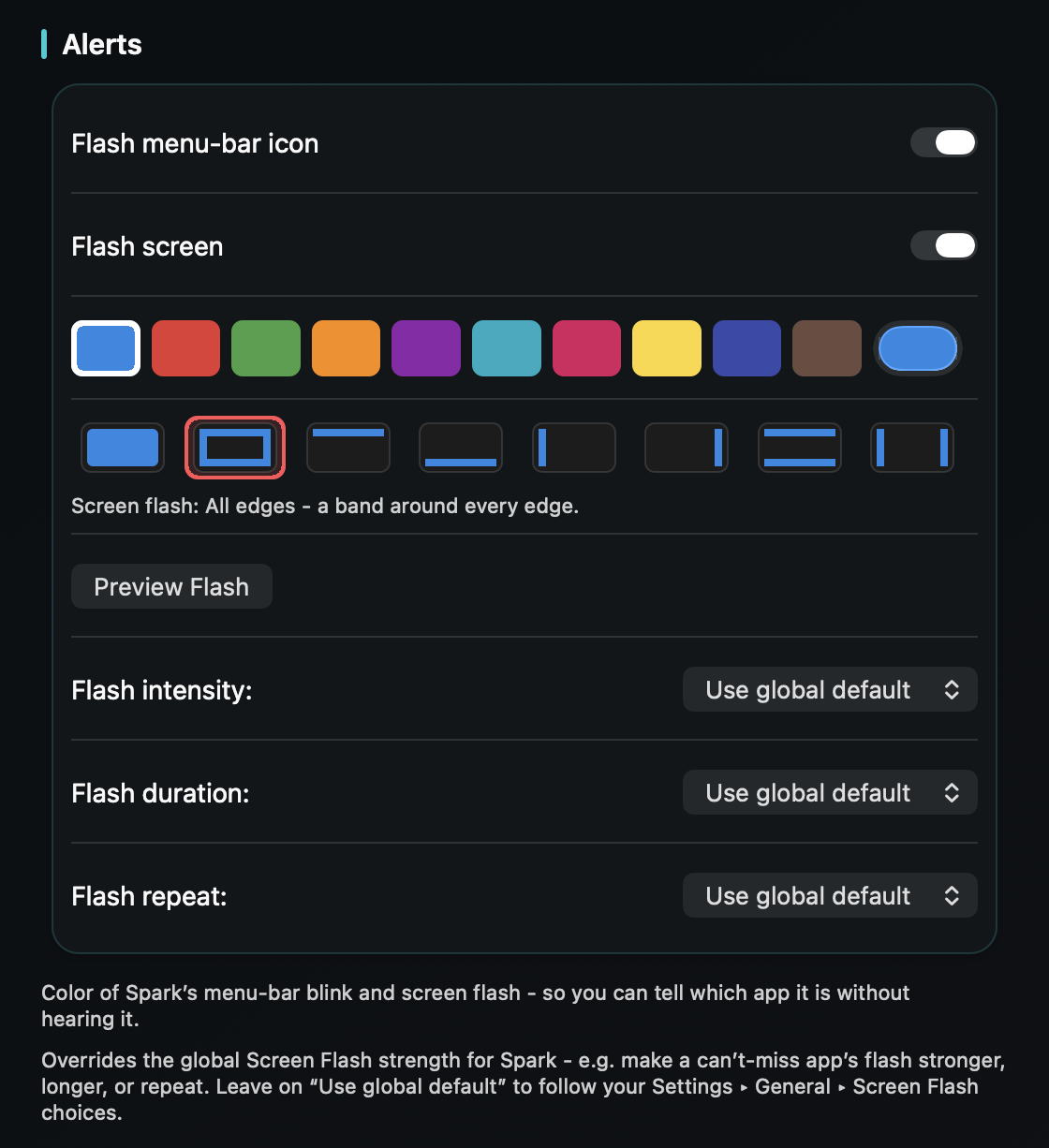
TrillMark reacts to the banner Spark shows. Add Spark, give it a sound you'll recognize and a color, and important mail arrives as a sound you know plus a labeled flash - so you can tell Spark apart from Slack and everything else without looking.
Because TrillMark can read the notification's text, you can layer a rule right on top of Spark's own filtering: a louder, more distinct sound only when a message is from a particular client or the subject contains a word like “invoice” or “urgent,” while everyday mail stays soft or silent.
It reads that text only on your Mac, only to decide how to react, and never sends it anywhere - which matters for email.
Give Spark its own sound and a colored, labeled flash. One‑time purchase, up to 3 Macs. Apple silicon and Intel, macOS 14+.
Not with Spark or macOS alone - Spark decides which mail notifies you, but the notification uses your Mac's single alert sound, and macOS only lets you turn that sound on or off. TrillMark reacts to the banner and plays a sound you choose, with a colored, labeled flash.
No - they work together. Keep using Spark to decide which mail is worth a notification; TrillMark then gives those notifications a distinct sound and a colored, labeled flash, plus optional rules for your most important senders.
Yes. Add a rule that matches that sender's name or a subject keyword and give it a louder, distinct sound, while everyday mail stays soft or silent. The text is read only on your Mac and never leaves it.