So a text from the one person you’re waiting on doesn’t sound exactly like every group thread and two-factor code.
The Messages app on your Mac plays one sound for every incoming message - and unlike an iPhone, the Mac version has no per-contact text tones. A group chat, a delivery code, and a text from someone you love all arrive with the identical chime.
macOS itself only lets you switch the Messages sound on or off in System Settings - never change it. So there’s no way to say “Messages should sound different from Mail,” and no way to say “this one person should sound different from a group thread.”
TrillMark reacts to the message banner macOS already shows. Add Messages, pick a sound you’ll know instantly and a color, and every text arrives as a sound plus a labeled flash - so you know it’s Messages, not Slack or Mail, without looking.
Because TrillMark can read the notification’s text, you can add a rule that plays a louder, distinct sound only when the message is from a particular person - the banner shows the sender’s name - while group chats and login codes stay soft or silent. It’s the per-contact text tone the Mac never gave you.
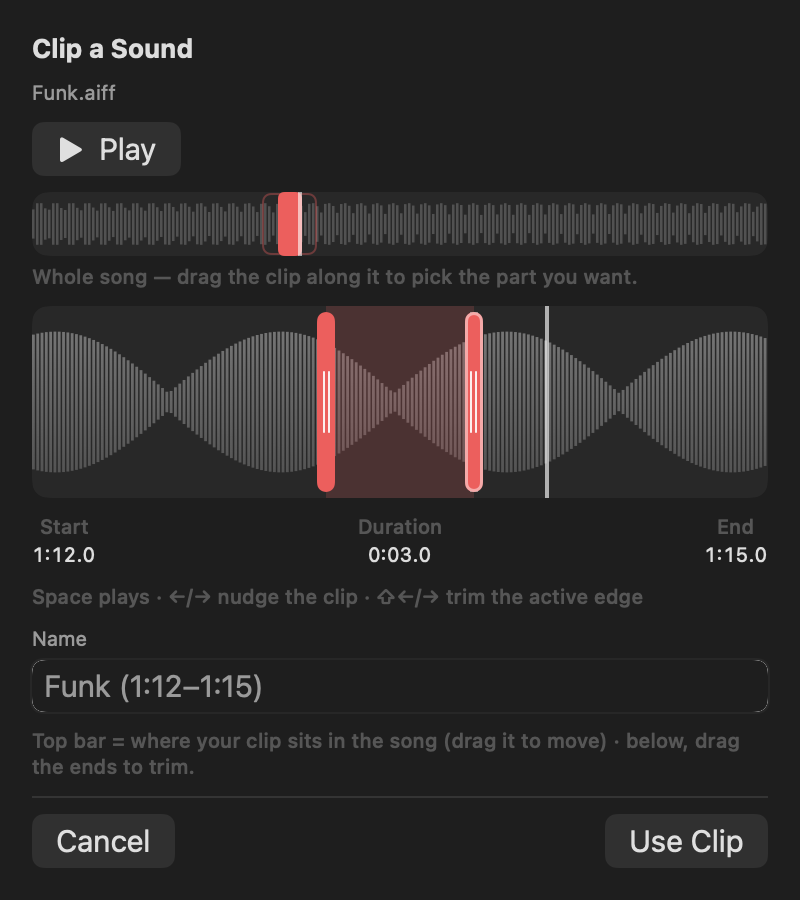
And if you’d rather use your own sound, clip a few seconds of any song in TrillMark and set that as the tone. It reads the message text only on your Mac, only to decide how to react, and never sends it anywhere.
Give Messages its own sound and a colored, labeled flash. One‑time purchase, up to 3 Macs. Apple silicon and Intel, macOS 14+.
Not in Messages itself - per-contact text tones are an iPhone feature, and the Mac uses one sound for every message. With TrillMark you can add a rule that matches a sender’s name in the notification and give that person their own louder sound, which is effectively a per-contact tone on your Mac. The text is read only on your Mac and never leaves it.
Yes. TrillMark lets you clip a few seconds of any audio file or song and use it as the sound for Messages - or pick from its built-in tones and preview them right in the list.
Yes. Alongside the sound, TrillMark can flash the screen in a color you pick, labeled “Messages,” so you can tell a text apart even with the sound off - useful if you’re Deaf or hard of hearing, or just keep your Mac muted.