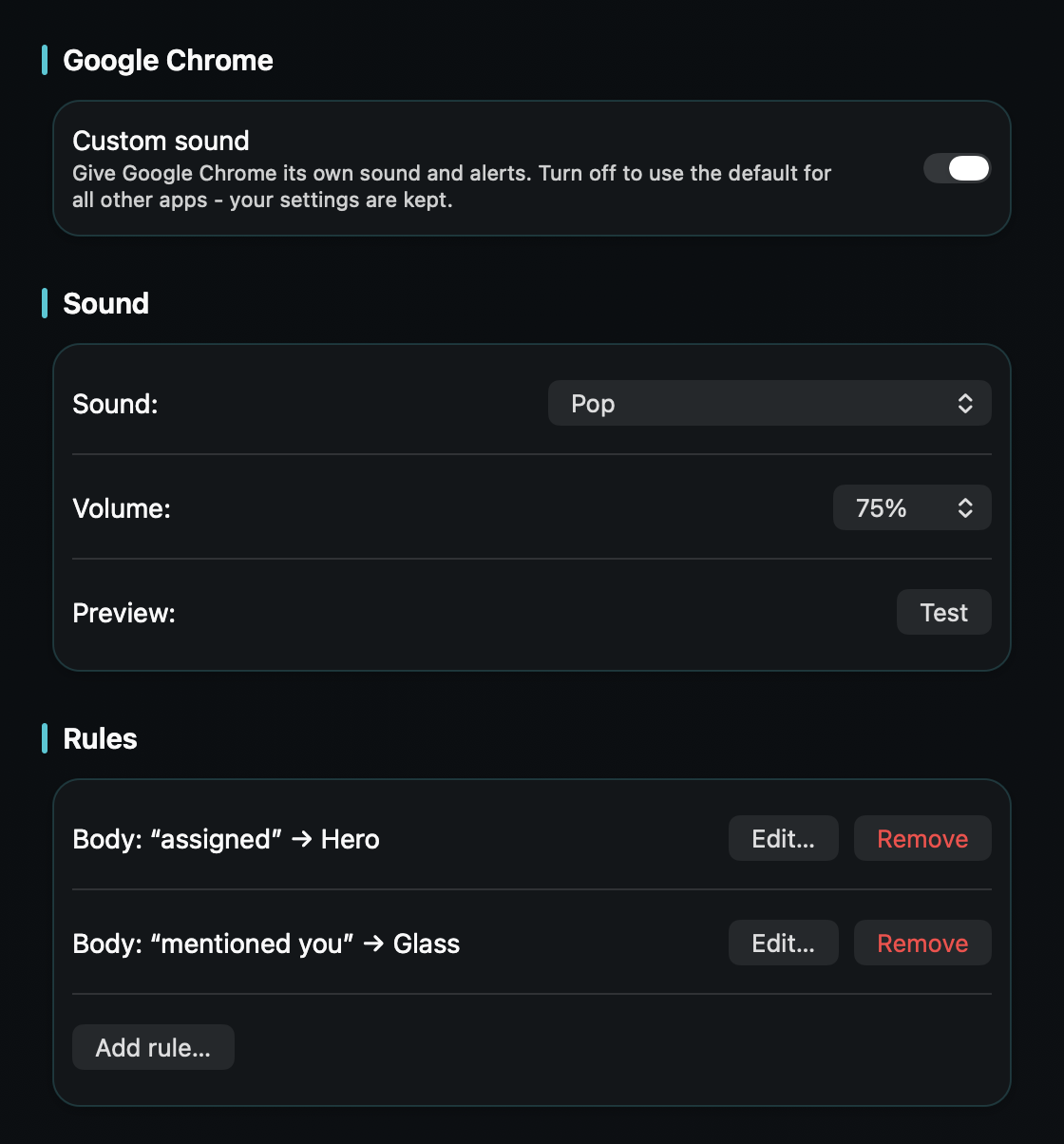
So an issue assigned to you or an @mention reaches you the moment it lands - without every status change and comment on the board sounding just as urgent.
macOS plays one alert sound for every notification and only lets you switch an app's sound on or off - never change it. Jira reaches you through your browser and email, so an issue someone just assigned you pings exactly like a routine status change, and the one that's actually waiting on you is easy to miss.
Jira makes it worse by design: its notification schemes fan out nearly every event on issues you report, are assigned, or watch - comments, transitions, field edits. Follow a busy project and it all arrives with the same chime, so the assignment that needs a real answer sits in the same anonymous pile as a colleague moving an unrelated card across the board.
TrillMark reacts to the banner Jira already shows through your browser. Add your browser, and because TrillMark can read the notification's text, you can add a rule that fires only for the Jira things that need you - an issue assigned to you, an @mention of your name, a transition on a ticket you own - while the steady stream of board activity stays quiet. Match the word “Jira” too, so the rule reacts to real Jira notifications and not every website in that browser.
So an assignment or an @mention arrives as a louder sound you recognize plus a labeled flash, and routine board updates stay soft or silent. You stop opening Jira just to find out whether the ping was for you.
It reads that text only on your Mac, only to decide how to react, and never sends it anywhere.
(?s)(?=.*jira).*(assigned|mentioned|yourname) , with yourname changed to your name as Jira shows it. It fires only when the banner mentions Jira and one of those words, not for every site. Give it a louder, more distinct sound.Give Jira its own sound and a colored, labeled flash. One‑time purchase, up to 3 Macs. Apple silicon and Intel, macOS 14+.
Not with Jira or macOS alone - Jira lets you tune which events notify you, but the notification uses your Mac's single alert sound, and macOS only lets you turn that sound on or off. TrillMark reacts to the banner Jira shows through your browser and plays a sound you choose, with a colored, labeled flash.
Yes. Because TrillMark can read a notification's text, you can add a rule that plays a distinct sound only when the banner mentions your name, an assignment, or an @mention, while general board activity stays quiet. The text is read only on your Mac and never leaves it.
Yes. Add the browser you read Jira in and match the word “Jira” in the rule, so it reacts to real Jira notifications and not every website. It's the same browser-source approach as the Gmail and GitHub guides.